ChatGPT: From chatbot to digital coworker
There’s a reason AI is starting to feel more helpful, more relevant, and a little more human lately.
Yes, large language models are getting smarter. They’re also remembering more.
Behind the scenes, model context windows have expanded dramatically in recent years. That means AI can now hold and reason across longer conversations, richer inputs, and deeper detail; a big leap forward from the “goldfish memory” chatbots of the past.
And it’s not just technical progress. AI companies are also investing in user experience: giving these models personalities, emotional range, and a growing number of settings that let you personalize how they think, talk, and collaborate.
Why? Because when your AI is easier to work with, you’re more likely to keep coming back.
AI companies want you to have a useful, pleasant, and sticky experience, so you stay longer, return more often, and ultimately become a more loyal and valuable user. That’s why they’re actively designing models to be not only competent but likable. Friendly. Adaptive. Human-ish.
And they’re not just crafting one-size-fits-all personalities. They’re building in tools and settings that allow you to tailor your AI to your business and preferences.
This is part of a larger shift: from isolated, one-off chats with a generic bot... to persistent memory, personalized assistants, and AI coworkers that understand you.
Today, we're going to walk through a few features you can use to make your conversations with ChatGPT more nuanced, more relevant, and more productive.
5 ChatGPT Features That Can Supercharge Your Results
1. Customize ChatGPT: Set your preferences once, get better responses forever
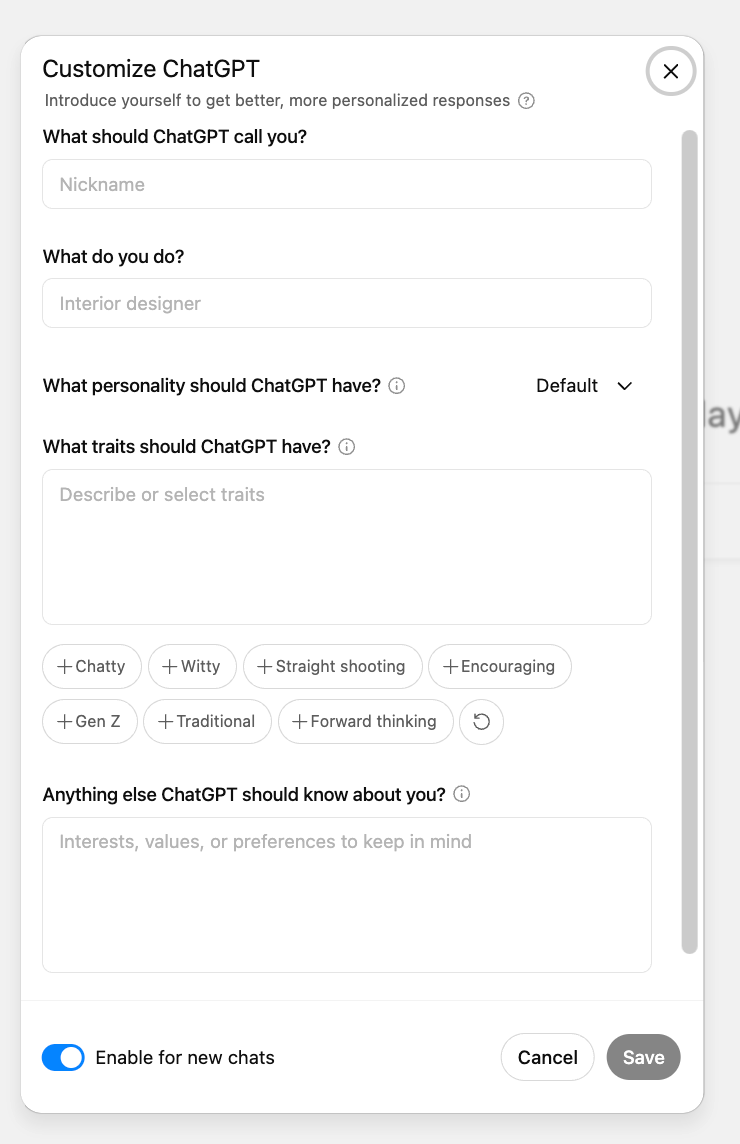
Where to find it: Go to Settings > Customize ChatGPT
This menu lets you personalize your experience by filling out a few simple fields, which can drastically improve the quality, tone, and relevance of your responses.
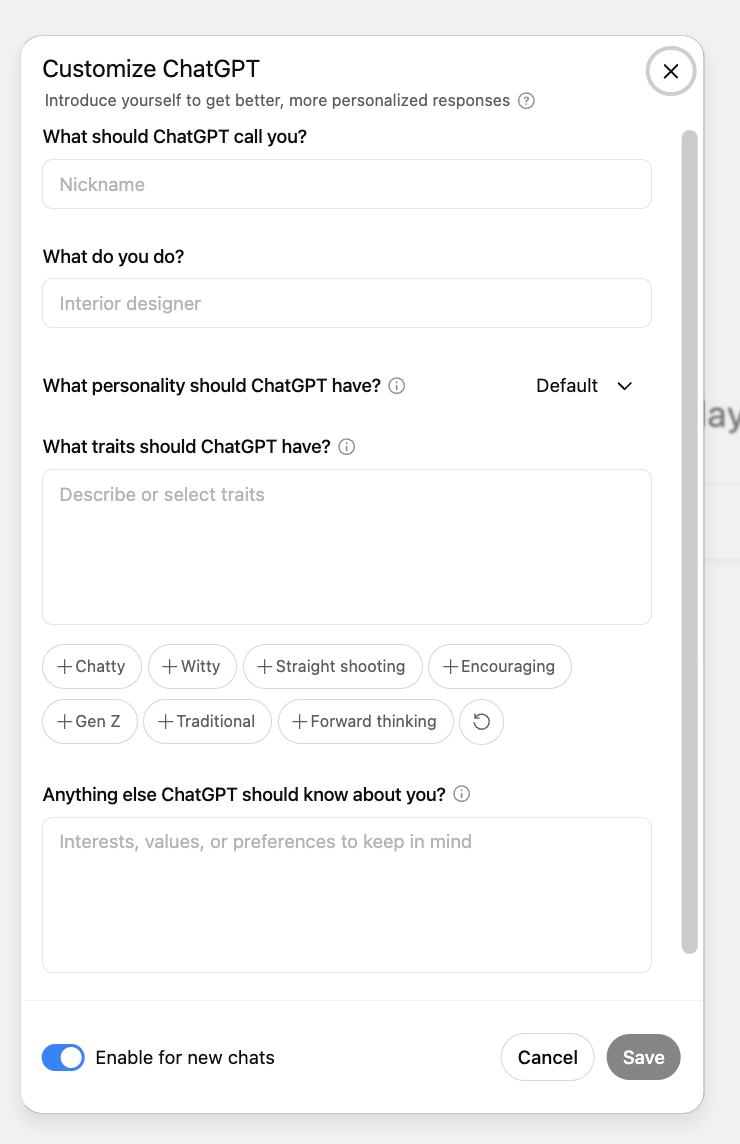
Here’s a breakdown of what you’ll see and how to use each field:
“What do you do?”
Use this to describe your role or responsibilities in plain language.
Example: “Freelance copywriter who works mostly with early-stage SaaS startups.”
ChatGPT will use this info to tailor its recommendations and outputs. It also means you won’t have to reintroduce yourself every time.
“What personality should ChatGPT have?”
The default is "adaptive and friendly," but you can choose from a handful of preset personas that align more closely with how you like to work (with options like blunt, supportive, cynical, etc.).
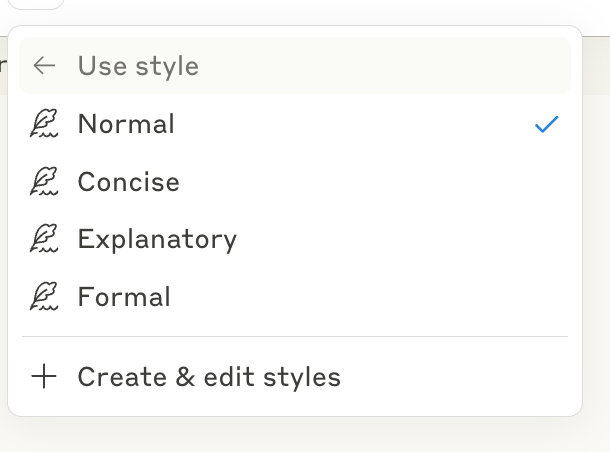
This affects tone, word choice, and how assertive or passive responses are.
“What traits should ChatGPT have?”
This is where things get more granular. Choose from a selection of trait tags, such as:
- Chatty
- Witty
- Straight shooting
- Encouraging
- Traditional
- Gen Z
- Forward thinking
You can combine traits or add your own to create your ideal digital coworker.
“Anything else ChatGPT should know about you?”
This open field is a great place to add:
- Formatting preferences (e.g. “I prefer lists over paragraphs.”)
- Style preferences (e.g. “Avoid bold text and emojis.”)
- Workflows (e.g. “I often work in Notion and Google Docs.”)
- Guidance and guardrails (e.g. “Be transparent when information is uncertain or out of date.”)
Think of this section as the place to set ChatGPT’s default operating mode.
At the bottom, there’s a simple toggle: Enable for new chats. Turn this on to make ChatGPT apply your settings consistently going forward.
2. Turn on Memory (and review what ChatGPT remembers)
Where to find it: Settings > Personalization > Memory
Memory is what allows ChatGPT to remember facts about you between chats. This turns the model from a moment-in-time assistant to a persistent digital collaborator.
There are two ways memory is created:
- Passive memory: ChatGPT may offer to remember facts it thinks are useful.
- Active memory: You can explicitly say, “Remember that I prefer bulleted lists,” and it will.
From the settings panel, you can:
- View what ChatGPT currently remembers
- Delete individual memories or clear them all
- Disable memory entirely if needed
Pro tip: Schedule a regular “memory audit” to make sure ChatGPT isn’t holding onto outdated info.
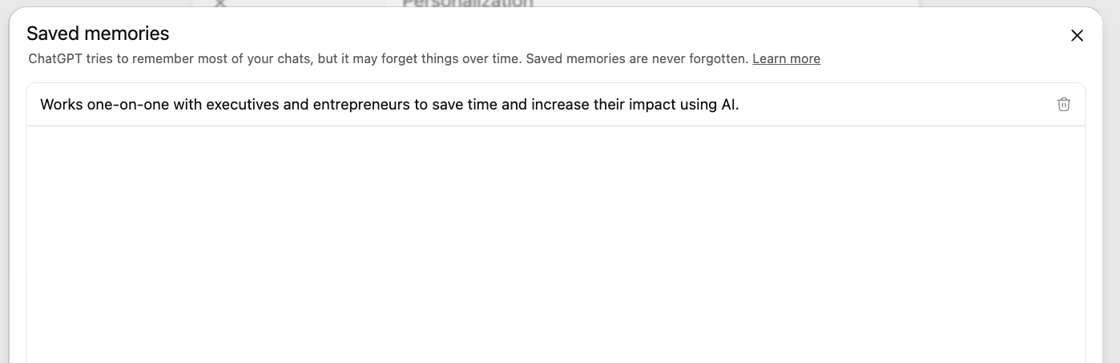
Custom settings vs. saved memory: What’s the difference?
- Customized settings are overarching. Think: tone, voice, style, formatting preferences, and high-level context like your role or industry. These are global instructions that apply across all chats.
- Saved memories, on the other hand, are more granular. They’re for facts about you that are useful in some conversations, but not necessarily all. Think: dietary preferences, a big project you’re working on, or the fact that you’re planning a trip to Japan next month. Those don’t need to shape every conversation — but when they’re relevant, they can dramatically improve the outputs.
For example:
“I’m currently hiring for a marketing ops role.” → makes more sense as a saved memory.
“I’m a B2B marketer who prefers straight-shooting tone and bulleted lists” → belongs in customized settings.
“I’m currently prepping for a product launch targeting agency owners” → saved memory.
Using both gives you a flexible foundation: broad preferences that shape ChatGPT’s behavior everywhere, plus specific, persistent context it can draw from when needed.
3. Use “In-Chat Memory” Wisely
Whether or not you use Saved Memories, you can still add useful context in the moment. Try phrases like:
- “Just so you know, I’m currently working on a product launch for a SaaS tool targeting agencies.”
- “Assume I’m writing this for a B2B audience of CMOs.”
You can also say:
- “Remember this for later” — if memory is enabled.
And if you want ChatGPT to forget something:
- “Forget what I just told you about [X].”
These lightweight, conversational updates can dramatically improve the relevance and quality of the responses you get.
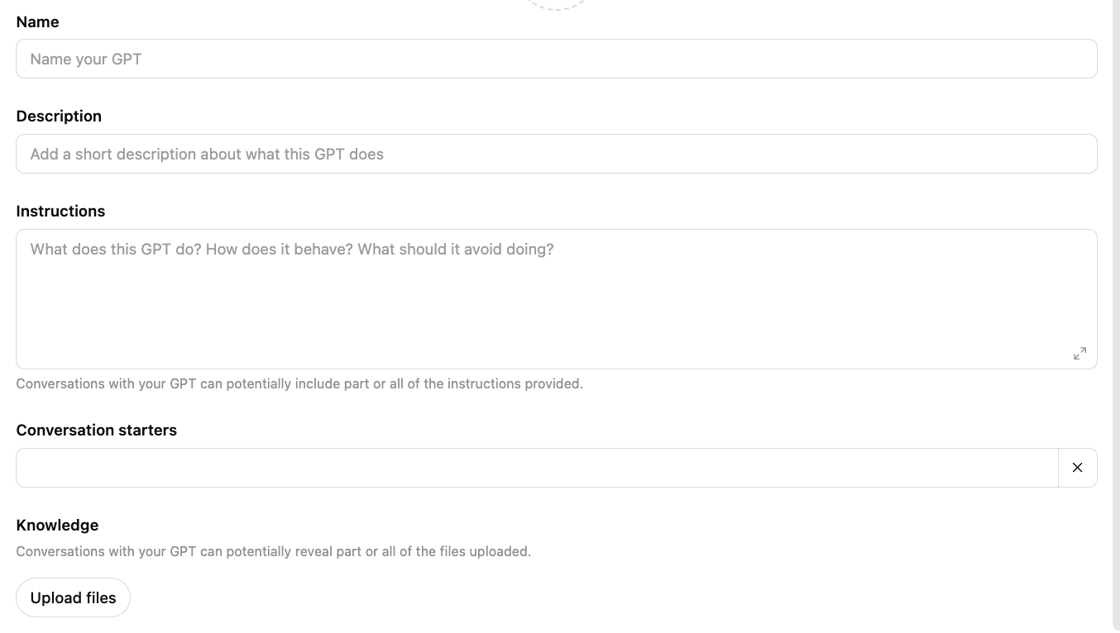
4. Create Custom GPTs for specific use cases
Where to find it: GPTs → Create
If you want to further personalize ChatGPT's personality, approach, or behavior for specific projects or use cases, turn to custom GPTs.
You can:
- Upload docs or reference material
- Set unique instructions and tone
- Define specific knowledge or capabilities
- Lock in formatting or structure preferences
This is ideal for:
- Agencies building client-specific GPTs
- Leaders running recurring tasks (like hiring or onboarding)
- Anyone who wants to simulate a domain expert
Think of custom GPTs as specialists: useful for narrow, repeatable tasks that require deeper context or a different voice than your default setup.
5. Bonus: Add reasoning preferences
One of the most underused tricks? Tell ChatGPT how to think, not just how to sound.
Here are ideas you can add to your custom settings or custom GPT instructions:
- “Ask a clarifying question before answering if the request is vague.”
- “If you don’t know something, say so.”
- “If the info may be outdated, note the uncertainty.”
- “Use real-world examples and analogies whenever possible.”
- “Explain your reasoning step-by-step before giving the final answer.”
More memory, more meaning
Each preference you clarify helps ChatGPT become more useful and aligned with how you think, work, and lead.
And the more nuanced your setup (balancing global customization with relevant, situation-specific memory) the better the results.
Remember: As AI goes mainstream, the advantage won’t go to those who have it, but to those who know how to wield it.